#Windows and macOS - flashing Pure with image
- Run Mudita Pure in USB MSC (Mass Storage Class) mode
- Switch off the phone and remove the battery (you won't need it for flashing)
- hold the center button (selection)
- plug in the USB cable
- wait while the text menu scrolls from the bottom
- release the center button
- choose
USB MSC mode
- Flashing on Windows and macOS
- download balenaEtcher from the website for your operating system. The downloaded file is either called
balenaEtcher-Setup-{version}.exe(for Windows) orbalenaEtcher-{version}.dmg(for MacOS) and will be used to install the application on your computer.

- install the balenaEtcher application.
- download the MuditaOS image you want to use and extract it locally.
Note: unzipped image has 16 GB
The .xz image is compressed twice using both tar and xz. Some unpackers will only extract .tar which should be extracted again to get a PurePhone.img file.
- Run balenaEtcher application and choose
Flash from fileand the ISO image as the image type. Load unzipped image onto the target device. It might look something like this:
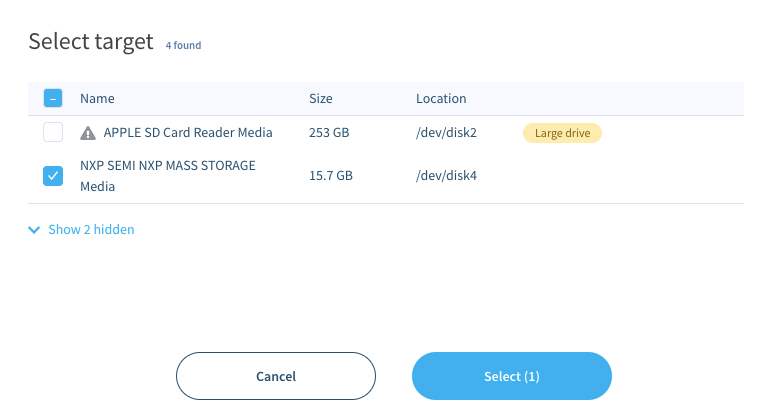
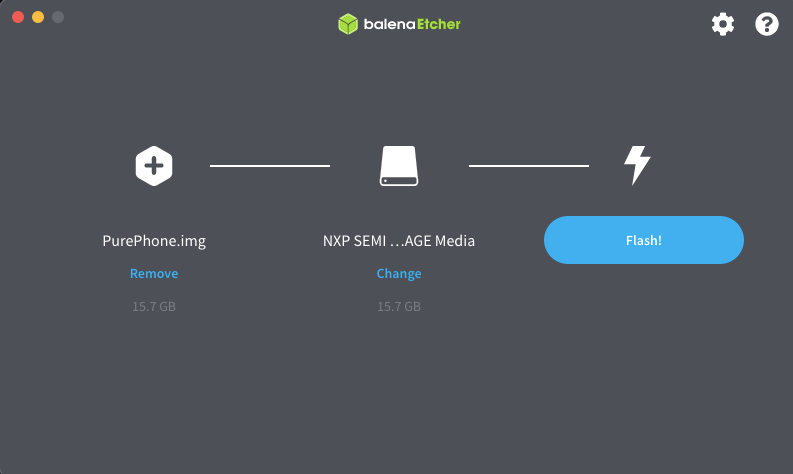
- press `Flash!`` and confirm if asked for the superuser password.
- wait for the flashing to complete:

- reboot the phone.
Note: In order to reboot the phone, do the following:
- Eject the drive from your Operating System (either using
Safely removeon Windows, orEjecton Linux), or - Reboot the phone by disconnecting it from the power supply (USB cable and battery) and connecting it to the relevant power source again.