#Setting up an integrated development environment
#Setting up in Eclipse
To run the project in Eclipse:
-
Run
cmaketo create build directory. Create inside buildsysfolder and copy all assets to it (e.g path for font:sys/assets/fonts/gt_pressura_regular_16.mpf). A faster way to do this is to run./rebuild scriptcommand in the main directory. -
Open project properties and in tab
C/C++ Build->Builder Settingsset build directory to:${workspace_loc:/PurePhone}/build -
Create debug configuration (right click on project and select
Debug as: local c/c++ application) -
Open new debug configuration and in
Argumentstab setWorking directoryto${workspace_loc:PurePhone/build} -
In
Debuggertab setGDB command fileto${project_loc}/.gdbinit
#Setting up in CLion
#Setting up Toolchains
- Open settings (CTRL+ALT+S)
- Go to
Build, Execution, Deployment->Toolchain - Add new toolchains for Linux and RT1051 (ALT+Ins) of
Systemtype-
Name: Linux
- CMake should be autodetected - if not, run
which cmake - Select appropriate
gdb - for x86 it's usually
/usr/bin/gdb
- CMake should be autodetected - if not, run
-
Name: RT1051
- CMake should be autodetected - if not, run
which cmake - Select appropriate
gdb - for RT1051 it's usually
~/gcc-arm-eabi…
- CMake should be autodetected - if not, run
-
#Building configurations
- Open settings (CTRL+ALT+S)
- Go to
Build, Execution, Deployment->CMake - Add new CMake Profile (ALT+Ins)
- Name: Linux
- Build type: Debug
- CMake options:
-DCMAKE_EXPORT_COMPILE_COMMANDS=True -DCMAKE_TOOLCHAIN_FILE=../Target_Linux.cmake -DCMAKE_EXPORT_COMPILE_COMMANDS=1 - Select appropriate Toolchain created above
- Generation path:
build-linux - Build options:
-j8
Note: you can set Generation path to build if you don't plan to configure CLion for RT1051.
- Add new CMake Profile (ALT+Ins)
- Name: rt1051
- Build type: Debug
- CMake options:
-DCMAKE_EXPORT_COMPILE_COMMANDS=True -DCMAKE_TOOLCHAIN_FILE=../Target_RT1051.cmake -DCMAKE_EXPORT_COMPILE_COMMANDS=1 ../ - Select appropriate Toolchain created above
- Generation path:
build-rt1051 - build options:
-j8
#Running/debugging
#Linux configuration
Important
Before 1st run, execute Build All in 'Linux' to generate the service_renderer utility.
Go to Edit Configurations… (double shift) and select CMakeApplication -> PurePhone. This is your configuration for Linux executable.
In Working directory append /build.
Now you can run/debug this configuration.
#RT1051 configuration
Use file .idea/JLink_server.xml to setup IDE. It's already in the project folder, so CLion should pick it up automatically.
You'll also need .gdbinit-1051-clion file modified for CLion (source).
This file needs to be present in $HOME/.gdbinit.
Try this command to input it there ln -s %project_root%/.gdbinit-1051-clion ~/.gdbinit.
#Workflow
In the debuging configuration dropdown select a pair of and ([ <exec> | <toolchn> ]):
- [PurePhone | Linux] for run/debug on desktop (Linux)
- [JLink server | RT1051] for debug on embedded (RT1051)
Note: RT1051 doesn't have run configuration. Only debug is available.
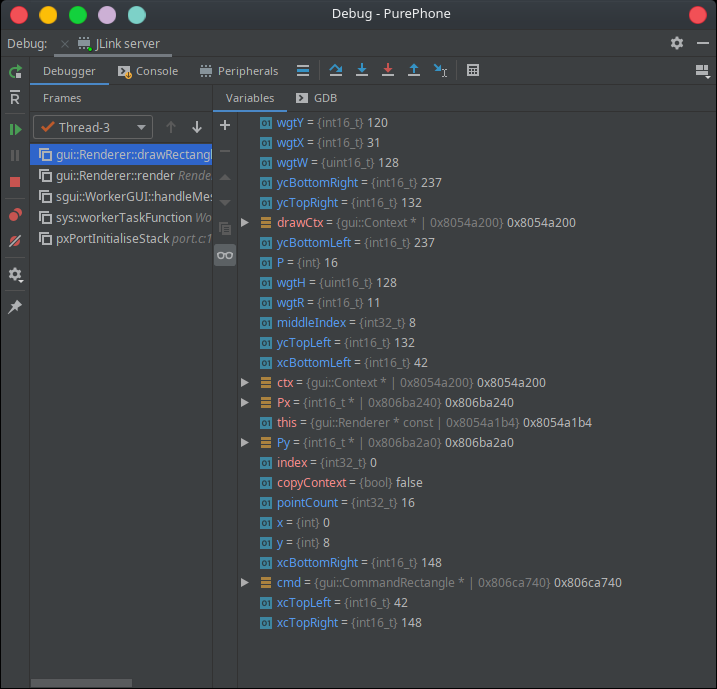
#Running target
It's possible to see logs from a RT1051 booted from eMMC and not from RAM.
To do so select JLink server (no upload) configuration.
Open JLinkRTTClient in a separate terminal.
Note: remember to stop this debug session when you want to switch to regular JLink server (with upload), otherwise they will collide.
To properly debug a running target you need to reset it first. Attaching to an already running target won't work.
#Separate build folders in CLion
To build separately for each architecture you need to:
- Open settings (CTRL+ALT+S)
- Goto to
Build, Execution, Deployment->CMake - Select
Linux - Add a variable to
Environment:PROJECT_BUILD_DIRECTORY=build-linux - Change
Generation Pathto:build-linux
and
- Open settings (CTRL+ALT+S)
- Go to
Build, Execution, Deployment->CMake - Select
rt1051 - Add a variable to
Environment:PROJECT_BUILD_DIRECTORY=build-rt1051 - Change
Generation Pathto:build-rt1051
After the above steps:
- Change run/debug
Working directoryfor Linux configuration. (Edit configurations…->PurePhone) - Change
Working directoryfrom…/PurePhone/buildto…PurePhone/build-linux
#Setting up in QtCreator
- Install
QtCreatorversion3.5or later - Install
CMakeversion3.19.5or later - It is highly recommended that you install
Ninjaas it will radically decrease rebuild times. - Ensure
CMakeis setup inQtCreator
#Project configurations
-
Go to
File->Open File or Project...and select theCMakeLists.txtproject file. -
After selecting the kits you wish to use select the
Projectsbutton on the left bar. -
Ensure
PureOSis the active project. -
Select
Buildunder the name of the kit you wish to configure. -
At the top of the
Build Settingspage, select the build configuration you want to modify. -
In the
Initial CMake parameters:field, append one of the following:For Linux Target:
-DCMAKE_TOOLCHAIN_FILE:STRING=Target_Linux.cmake
-DPRODUCT:STRING=PurePhone
For RT1051 Target:
-DCMAKE_TOOLCHAIN_FILE:STRING=Target_RT1051.cmake -DPRODUCT:STRING=PurePhone -
Build project normally.
#Additional info
#Prevent git from suggesting commits
If you want to prevent git from suggesting you to commit changes to the configuration files where we place local paths and other data, please cast following spell: git update-index --skip-worktree env.cmake
This will tell git to ignore local changes to the file. In above example we are preventing commiting changes to file called env.cmake where you probably want to place local path to Arm's toolchain.
#Separate build folders
By default both targets (Linux & RT1051) are build into the same destination (the build folder).
With this configuration you have to run ./rebuild.sh every time you want to change target. Also you can't debug simultaneously Linux and RT1051.
There is an option for both targets to have separate build folders.
To enable it, set the environmental variable SEPARATE_BUILDS to any value (e.g. =1) inside ./rebuild.sh.
Examples:
env SEPARATE_BUILDS=1 ./rebuild.sh rt1051 will cause RT1051 to be build into a separate build-rt1051 folder.
By default ./rebuild.sh rt1051 builds into build
You can build only the Linux build inside its separate folder, and leave RT1051 in place, thus maintain compatibility with ./run.sh.
> env SEPARATE_BUILDS=1 ./rebuild.sh linux
> cd build-linux; ./PurePhone.elf
> cd ..
> ./rebuild.sh rt1051   # will be built to the default `build` folder
> StartJLinkServer.sh &
> ./run.sh
Guide for CLion has a dedicated section entitled "Separate build folders in CLion".
#How it works
By default ./rebuild.sh copies assets and generates CMakes to generic build.
SEPARATE_BUILDS=1 overrides it.
Then comes CMake. CMake uses persistent (CACHED) variable PROJECT_BUILD_DIRECTORY to build every module.
You can set it either in cmake-gui or by passing environmental variable to cmake.
This works like a toggle. You don't have to specify it every time. The new build path gets embedded into every CMakeCache.txt, so any following make command doesn't require any extra arguments.